English
Join
Early access on Mac · Windows soon

Give Feya a home

Install her on your Mac. She helps run AI, and you earn MAGIC.

Any device can get in line. Join the waitlist and tell us what you have.

Three steps, and your Mac starts earning.

Feyas are answering right now.

The beta network is live. These numbers come from it directly and refresh every few seconds.

active nodes
requests answered
AI tokens generated
people on the waitlist
countries

Active node Waitlist

More about Feya

AI modelsSix models, from 2 GB to 200 GB

One Mac fits the small models. Together, Feyas run the big ones.

Each Mac lends Feya about two thirds of its memory, so you can keep using it. Models past the dashed line are split across several Macs.

How much memory each model needsDashed line: what one 16 GB Mac can give
Qwen 2.5 1.5B2 GB

Short, simple questions

Fits on any Mac

SD-Turbo4 GB

Pictures from a text description

Fits on any Mac

Llama 3.1 8B8 GB

Emails, summaries, ideas

Fits on a 16 GB Mac

Gemma 4 31B24 GB

Harder questions that need reasoning

A big Mac, or two together

Llama 3.3 70B40 GB

Long, detailed answers

Several Macs together

DeepSeek V4 Flash200 GB

The most capable model on Feya

Many Macs together

MAGICWhat you earn and what you spend
50 MAGICto start, enough for thousands of AI requests. During the beta, requests are free anyway.

1 MAGIC = 1,000,000 Magic Dust. Dust is the small change.

You earnMAGIC for every answer your Mac gives, plus bonuses
  • MAGIC for every answer your devices give, once it’s verified. Longer answers, faster Macs and steady uptime earn more.
  • 50 MAGIC when you join.
  • 50 MAGIC for each friend who signs up with your invite link, once their device starts working. The link is on your home screen.
  • Coming later A cut of what your friends’ devices earn.
You spendA little Magic Dust for each request
  • Magic Dust on every request you make. Each answer shows what it cost.
  • About 1 Magic Dust per token. The rate depends on the model: bigger models cost more per token. 50 MAGIC is 50 million Dust, enough for thousands of requests. Long chats cost more, because the whole conversation is sent with each new message.
SafetyFiles, speed, connection, privacy

Your Feya stays in her own corner of your Mac and leaves your files alone.

What she can touch, and what she never does.

Your Mac
Documentsnever Photosnever Desktopnever Messages, mailnever
Feya’s corner AI models Settings and logs
  • Your files stay untouchedFeya keeps models, settings and logs in her own folders. She never opens, reads or uploads your files.
  • Your Mac stays fastFeya uses only part of the memory and goes full power only when the Mac is plugged in and the screen is off or locked. She slows down if the Mac gets hot, and always leaves at least 20 GB free on disk.
  • Signed and checkedThe app is notarized by Apple. Updates are signed by Feya and checked before they install. Models download only from Feya’s catalog.
  • Encrypted in transit, no open portsYour Mac connects out to Feya over a connection that is encrypted in transit. Nothing connects in, so there’s nothing to change on your router or firewall.
  • You’re in controlOne switch pauses Feya. On battery she runs lightly and lets the Mac sleep; untick Use battery and she waits for the charger.
  • Nothing is savedRequests your Mac answers aren’t kept on it, and Feya doesn’t store chat history on its servers.
How to joinStep by step, with screenshots

The first two steps take a minute. The other three take about ten, once we open access for you.
1

Sign up with your email

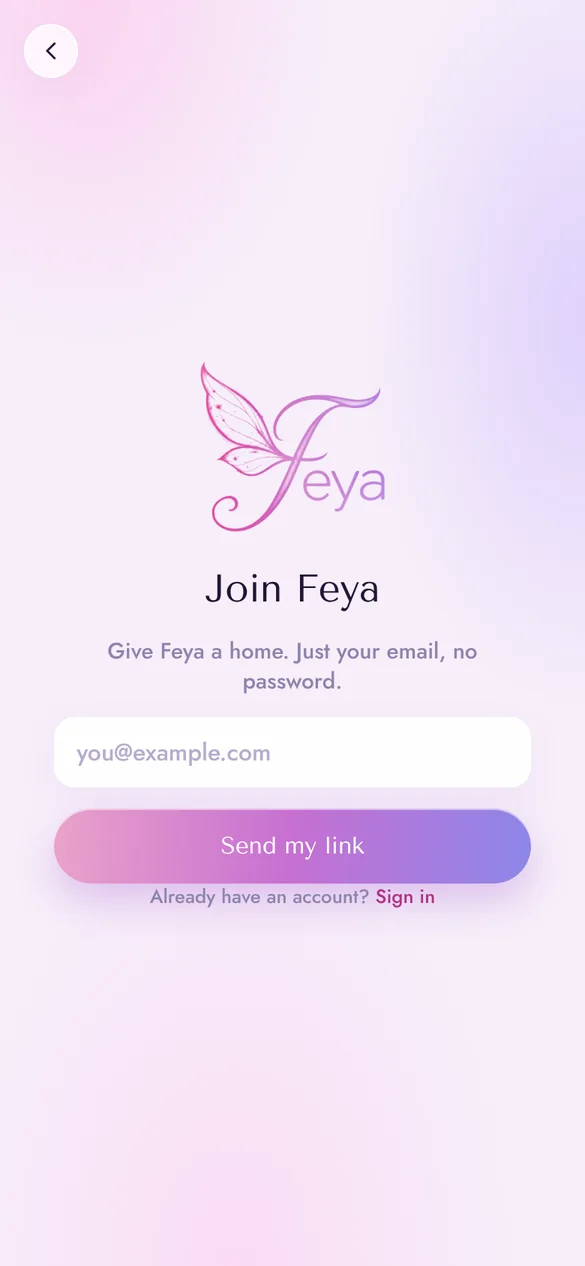
  • Tap Join and enter your email. No password.
  • You’ll get an email, “Verify your email to join Feya”. Tap the link in it.
  • That’s it: you’re in, with 50 MAGIC already in your account.
Join Feya
The Join Feya page: email field and Send my link button
2

Join the waitlist with your computer

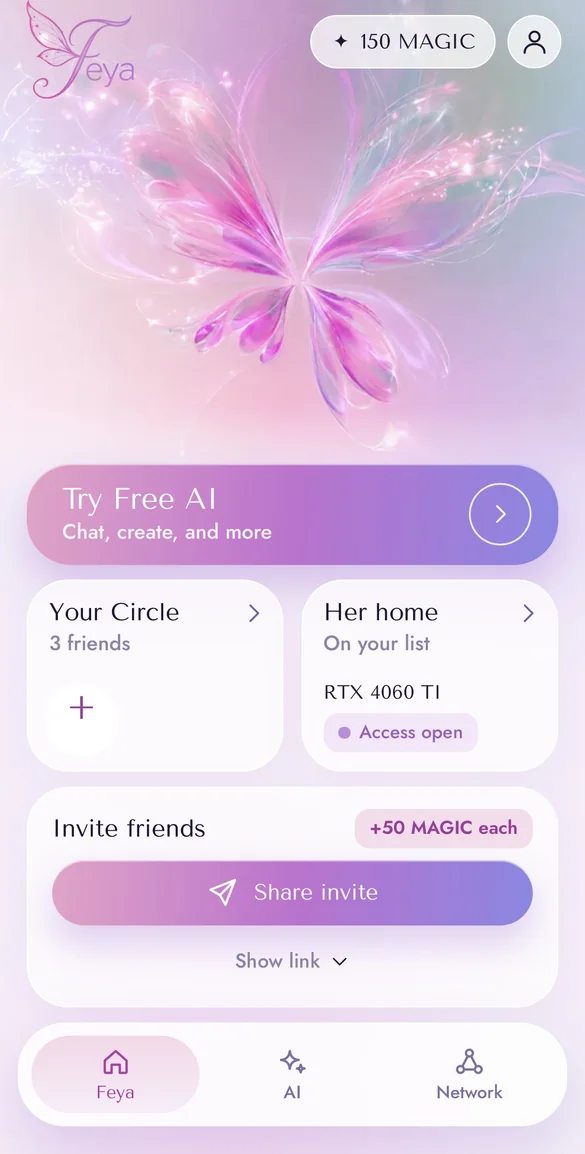
  • On the home screen tap Give her a home.
  • Tell us what you have: laptop or desktop, Mac or Windows, and which chip or graphics card. Tap Add to my list.
  • The card switches to Under review. We open access in waves.
Home screen: 150 MAGIC, Your Circle with 3 friends, an RTX 4060 Ti with Access open
3

Get your code

When we email you “You’re in”
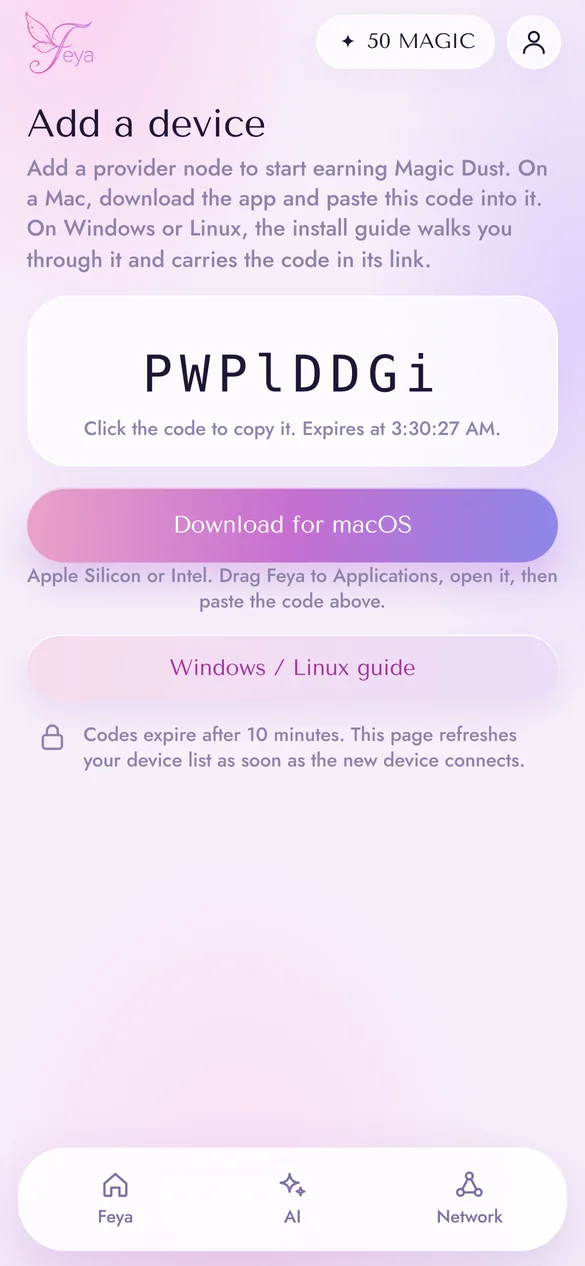
  • The link in that email opens Add a device.
  • You’ll see an 8-character pairing code. Tap to copy it. It’s good for 10 minutes, and you can get a new one any time.
  • Tap Download for macOS. On Windows or Linux, open the Windows / Linux guide instead.
The Add a device page: a pairing code, Download for macOS, and the Windows / Linux guide
4

Set up the app

  • Open the download, drag Feya into Applications and launch it.
  • In the Welcome to Feya window, paste your code under Set up this Mac and press Start.
  • Feya does the rest: she installs her engine and downloads a first model. The first run takes a few minutes. You can close the window; the menu bar shows progress.
  • Once you see You’re contributing to Feya!, your device shows Connected in your account.
5

Let it work

  • Click the Feya icon in the menu bar. A wave and one word tell you what your Mac is doing: Ready, Working or Off.
  • Underneath: what your Mac has earned and how many chats it has answered.
  • The switch at the top turns Feya on or off.
  • A Mac earns most when it’s plugged in with the lid open while you’re away. Closing the lid puts it to sleep.
QuestionsThe basics, and how it works under the hood

The basics

Do I have to add a computer?

No. You can sign up and just use the chat. Adding a Mac grows the network and earns you MAGIC.

Who can see my requests?

During the beta, your prompts are processed on computers in the Feya network, including Macs and PCs run by other Feya members, which can see what you send while they answer it. This is a concession we are making for the beta, so please don’t share anything sensitive. Feya does not store your chat history during the beta: your conversations are not saved on our servers, in your browser, or on the computers that answer them. Feya’s security and privacy are audited annually by an independent firm. Privacy notice

What can I do with MAGIC?

For now it pays for your AI requests, which are free during the beta anyway. We’re still finalizing the full program terms and rewards, and will publish them before they take effect.

How do I stop or remove Feya?

To pause, flip the switch in the menu bar. To remove it, quit Feya from the menu, drag it from Applications to the Trash, and delete the .feya folder in your home folder, where the models live.

I already signed up. How do I sign in?

Tap Sign in and enter your email. We’ll send a sign-in link that works for 15 minutes.

Under the hood

What happens when I send a request?

The chat sends it to Feya’s coordinator. The coordinator tracks which devices are online, which model each has loaded and how fast it is, and routes the request to a device, or a group of devices, running that model. The answer comes back the same way.

What actually runs on my Mac?

Two widely used engines: llama.cpp for text models and stable-diffusion.cpp for images, running on your Mac’s GPU through Metal. The models are open-weight: Llama, Gemma, Qwen, DeepSeek. Feya’s own code just connects these engines to the network.

How does one model run on several Macs?

The coordinator picks the largest model the online Macs can hold between them. One Mac leads, the others help, and the model’s layers are split by how much memory each one has. The lead runs the model; the helpers compute their layers over llama.cpp’s RPC protocol. It works best when the Macs are close to each other on the network.

How does my Mac connect without opening ports?

Your Mac opens an outbound WebSocket to Feya, encrypted with TLS, and keeps it open. Requests come in over that connection, so nothing on the internet connects to your Mac directly. Each device proves its identity with its own key, so another machine can’t pose as it.

Which model does my Mac run?

You don’t have to choose. Your Mac reports how much memory it can spare (part of its RAM, capped by what the GPU can handle), and the coordinator gives it a model that fits, or makes it a helper on a bigger one. A small starter model downloads first, and a better one follows in the background.

How is my work counted?

Each answer produces a receipt: model, tokens and time, signed with an Ed25519 key that never leaves your device. The coordinator checks the signature and credits MAGIC based on the tokens, the model file’s precision, your Mac’s speed and your device’s reliability rating. When a model is split, each Mac is paid for its part.

The people behind Feya.

Stay in touch.