
How it works
Three steps, and your Mac joins the network.
Install her on your Mac. She helps run AI, and you earn MAGIC.
-
01
Join the list
All you need is an email. No password, no card. AI is free once your access opens.
-
02
Install Feya on your Mac
Download the app and paste the code from your account. About 10 minutes.
-
03
Earn MAGIC
In the background, your Mac answers AI requests from people on Feya. It earns MAGIC when it answers someone’s request. Some days there may be none.
Step by step, with screenshots
How to join
The first two steps take a minute. The other three take about ten, once we open access for you.
-
1
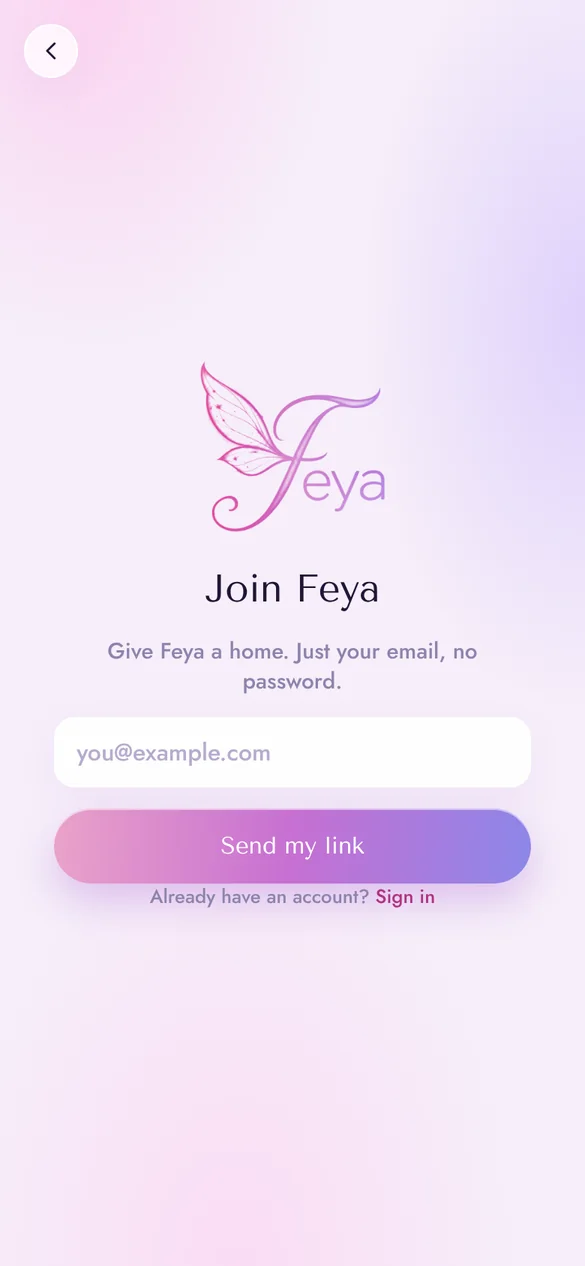
Sign up with your email
- Tap Join and enter your email. No password.
- You’ll get an email, “Verify your email to join Feya”. Tap the link in it.
- That’s it: you’re on the list. We email you when access opens.
-
2
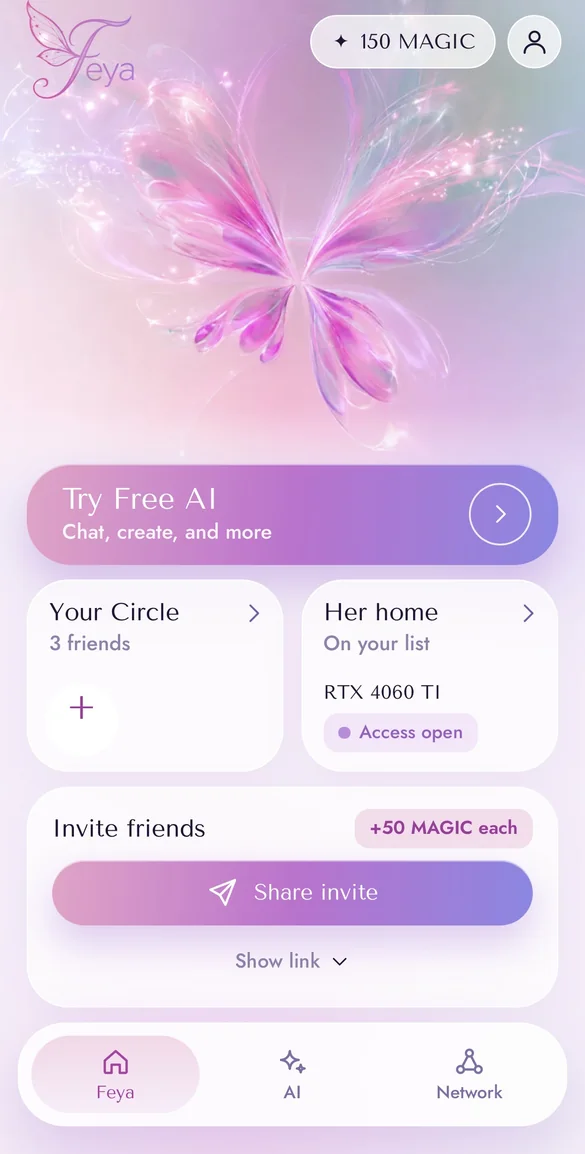
Join the waitlist with your computer
- On the home screen tap Give her a home.
- Tell us what you have: laptop or desktop, Mac or Windows, and which chip or graphics card. Tap Add to my list.
- The card switches to Under review. We open access in waves.
-
3
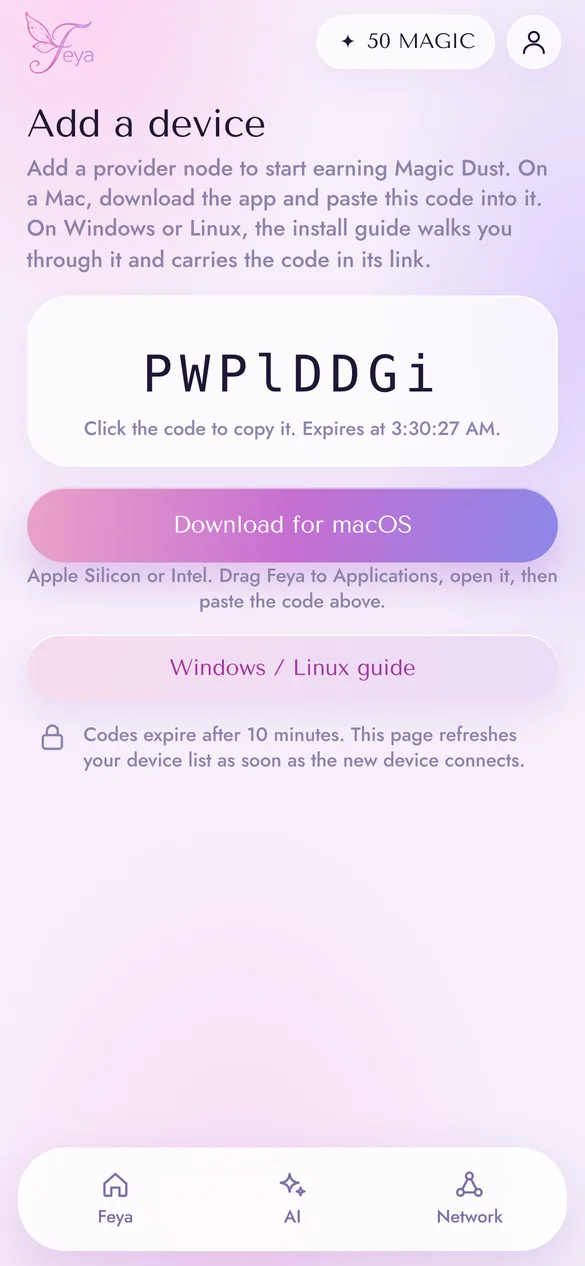
Get your code
When we email you “You’re in”
- The link in that email opens Add a device.
- You’ll see an 8-character pairing code. Tap to copy it. It’s good for 10 minutes, and you can get a new one any time.
- Tap Download for macOS. On Windows or Linux, open the Windows / Linux guide instead.
-
4
Set up the app
- Open the download, drag Feya into Applications and launch it.
- In the Welcome to Feya window, paste your code under Set up this Mac and press Start.
- Feya does the rest: she installs her engine and downloads a first model. The first run takes a few minutes. You can close the window; the menu bar shows progress.
- Once you see You’re contributing to Feya!, your device shows Connected in your account.
 Welcome to Feya
Your Mac helps run AI for everyone, and earns MAGIC when it answers requests. Feya lives in your menu bar, at the top-right of your screen. Click it any time.
Set up this Mac
Paste your pairing code from app.feya-ai.com. Feya installs everything it needs and starts contributing automatically.
PWPlDDGiStart
-
5
Let it work
- Click the Feya icon in the menu bar. A wave and one word tell you what your Mac is doing: Ready, Working or Paused.
- Underneath: what your Mac has earned and how many chats it has answered.
- The switch at the top turns Feya on or off.
- A Mac can only answer requests while it’s awake: plugged in, with the lid open. Closing the lid puts it to sleep.
FeyaAIWorking12,400Sparkles earned38chats answeredUse battery
About ten minutes